
Documented Signatures & Delivery Receipts
A
Documented Signatureis a guided handover in Orbit Cockpit. The driver shows the recipient what is changing hands, the recipient signs on the device, and Orbit renders a delivery receipt from the information the recipient confirmed.
Overview
Most proof of delivery is a file: a photograph of the goods in position, or a signature scribbled on a screen. That file proves someone captured something. It does not show what the signer was looking at. A Documented Signature closes that gap. Before the recipient signs, Orbit Cockpit presents a Signing Summary listing the Shipment, the receiver, every Load and its outcome, and the overall result of the handover. The recipient signs against that summary, and Orbit renders the receipt from that same data. The receipt cannot drift from what the recipient agreed to.
The same ceremony runs at both ends of a journey. At a dropoff it produces a delivery receipt and the recipient signs. At a pickup it produces a collection receipt and the shipper signs, with only the wording changing.
A Documented Signature sits alongside the ordinary proof types rather than replacing them. You still use Photo, Signature, Signature with Name and Document wherever a captured file is all you need. Stops & Arrival Tracking covers capturing those, and Documents & Proof of Delivery covers what happens to a proof file once it exists: versions, linked records and visibility. This article covers the guided ceremony and the receipt it produces.
Key highlights:
Signed against a frozen summary — The recipient confirms an itemised view of the handover, and Orbit renders the receipt from that same data
Collections as well as deliveries — The ceremony runs at pickup and dropoff stops, producing a collection receipt or a delivery receipt
A receipt either way — When nobody signs, Orbit records the reason and prints it where the signature would sit
Nothing is lost off-grid — The ceremony runs on the device and uploads later, so a basement loading bay does not cost you a signature
One receipt per shipment — At a consolidated stop each recipient signs for their own goods
Setting up documented signatures
Two things must be in place: a receipt template for your organisation, and a proof requirement on the stops where you want the ceremony to run.
Configure the receipt
In Orbit MissionControl, go to Settings → ePOD. Three settings apply across your whole organisation.
Setting | What it controls |
|---|---|
Delivery Receipt Template | The document template Orbit renders as the receipt for every completed handover. If you have none yet, select Create From ABL Starter to generate one you can then edit under Document Templates |
Delivery Photos | Whether Orbit asks the driver for photos during the handover: Off, Optional, or Mandatory |
Recipient Language | The language of the screens the recipient reads and of the rendered receipt, independent of the language the driver uses |
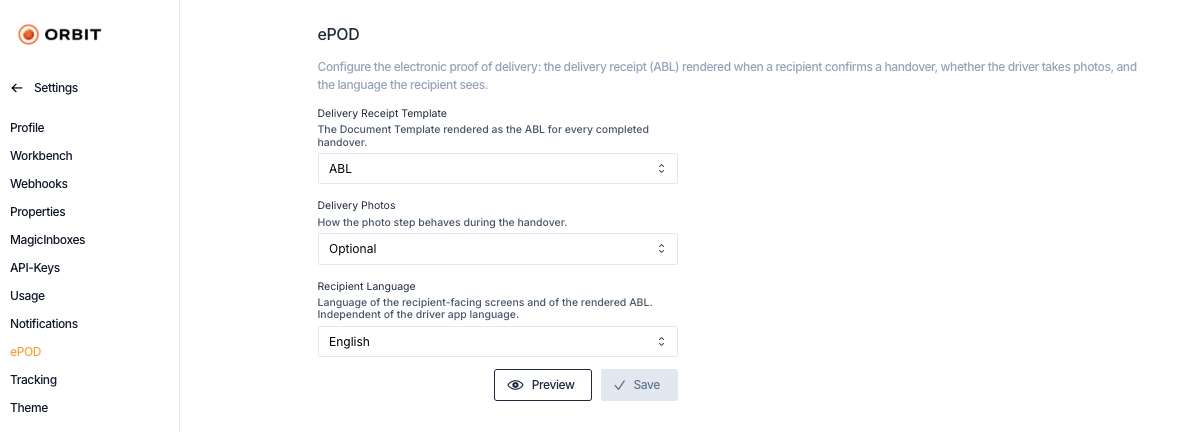
Use Preview to check how your template renders before you save it.
The Signing Summary, the confirmation sentence and the signature screen are what the recipient reads and agrees to, so they follow the Recipient Language setting. The driver keeps working in their own app language throughout, including the photo step and the screen for recording a missing signature.
Require it on a stop
A Documented Signature runs only where you ask for it. Set it as a proof requirement on the pickup or dropoff side of a Shipment, as you would require a Photo or a Signature:
In Orbit MissionControl, open the TransportComposer and select the stop you want to change.
In the stop's proof requirements, tick
Documented Signature.Save the transport.
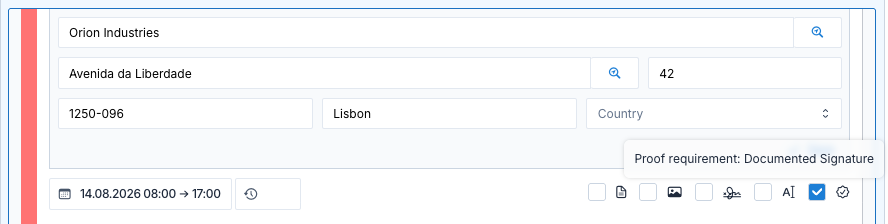
You can also set proof requirements through the Orbit API when you create or edit a Shipment, and your TransportShape can carry them as a default, so every booking of a given type arrives with the right requirement in place.
You set requirements per stop side, so a Shipment can require a Documented Signature at delivery while its collection needs only a Photo.
The handover in Orbit Cockpit
The ceremony opens when the driver finishes working the stop, and runs as a fixed sequence of screens. Orbit records nothing until the driver reaches the end, so an interrupted ceremony leaves no trace and the driver can start it again.
Recording what happened to each load
Where load status tracking is in use, the driver first records the outcome of each Load at the stop: scanning items, marking them successful, giving a failure reason such as Load Damaged, Load Missing or Load Refused with optional detail, or completing a load with a note where it changed hands with a difference worth recording. The driver does this before the ceremony because nobody can edit the Signing Summary. It shows what the driver already recorded, so corrections belong in the load step. Load Status Tracking covers load statuses.
The Signing Summary
The driver hands the device to the recipient showing the Signing Summary. It lists:
the
Shipmentcode and any referencesthe receiver at a dropoff, or the shipper at a pickup, with company name and address
every
Loadwith its description, quantity, outcome, any failure reason and comment, any note recorded on a successful load, and any scanned identifiersthe overall Delivery Result, or Collection Result at a pickup
the confirmation sentence the recipient is agreeing to
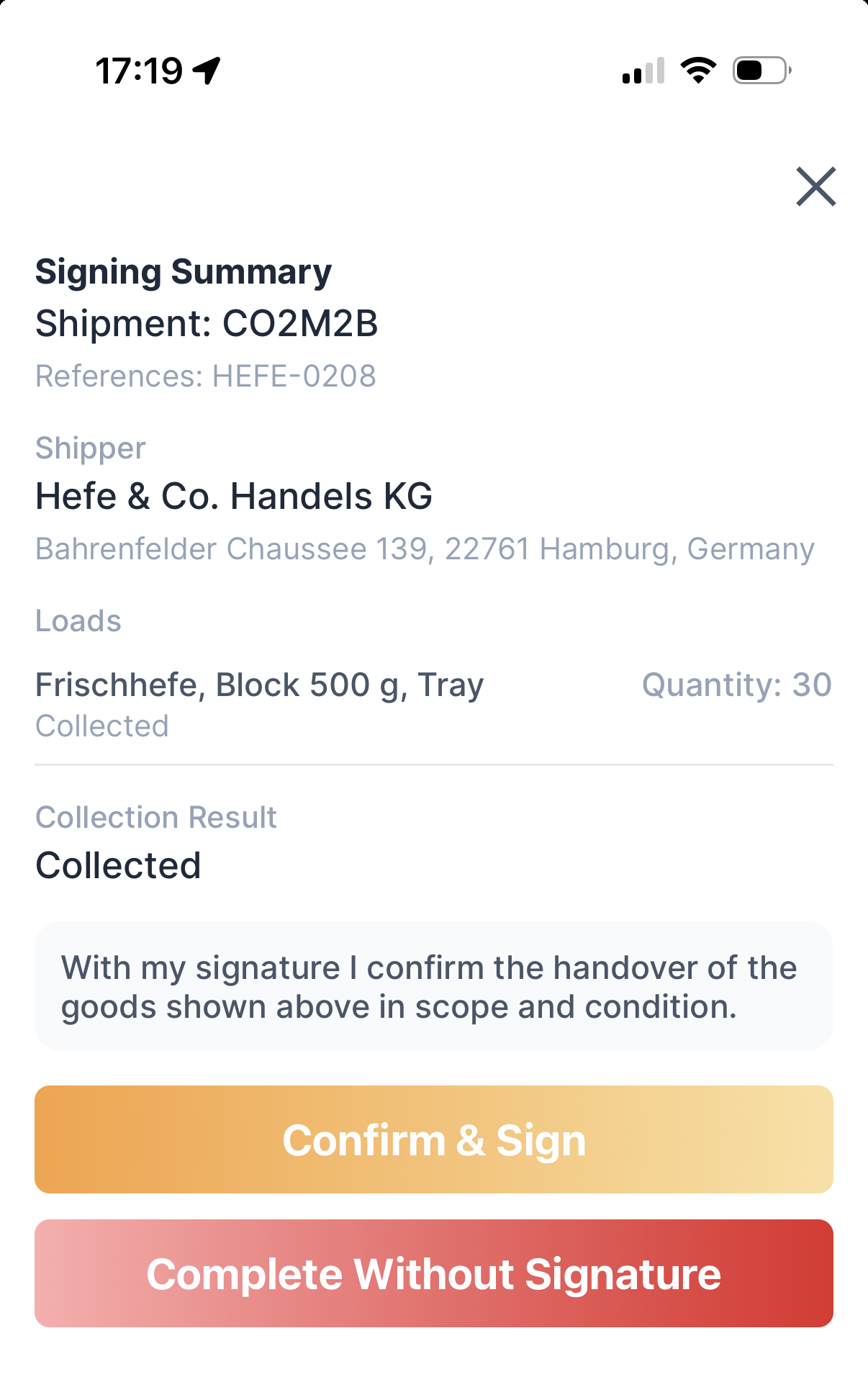
Orbit shows each Load in plain terms rather than internal status names:
Outcome | At a dropoff | At a pickup |
|---|---|---|
Handled successfully |
|
|
Handled unsuccessfully |
|
|
Not recorded by the driver |
|
|
Orbit derives the overall result from those outcomes rather than asking anyone to judge it. Every Load successful gives Delivered, none gives Not Delivered, and anything in between gives Partially Delivered. At a pickup the wording becomes Collected, Not Collected and Partially Collected.
Signing
The recipient selects Confirm & Sign. They enter their name, add a comment if they want, and sign in the landscape signature area. Orbit requires the name, and the receipt prints it beneath the signature. Orbit does not ask for the signer's role or their relationship to the receiving company.
Completing without a signature
Sometimes nobody signs. Rather than leaving a gap, the driver selects Complete Without Signature and records why. Orbit treats this as a documented outcome and still produces a receipt.
Reason at a dropoff | Reason at a pickup |
|---|---|
Nobody was there | Nobody was there |
Recipient refuses to sign | Shipper refuses to sign |
Recipient cannot sign | Shipper cannot sign |
Recipient disputes the data | Shipper disputes the data |
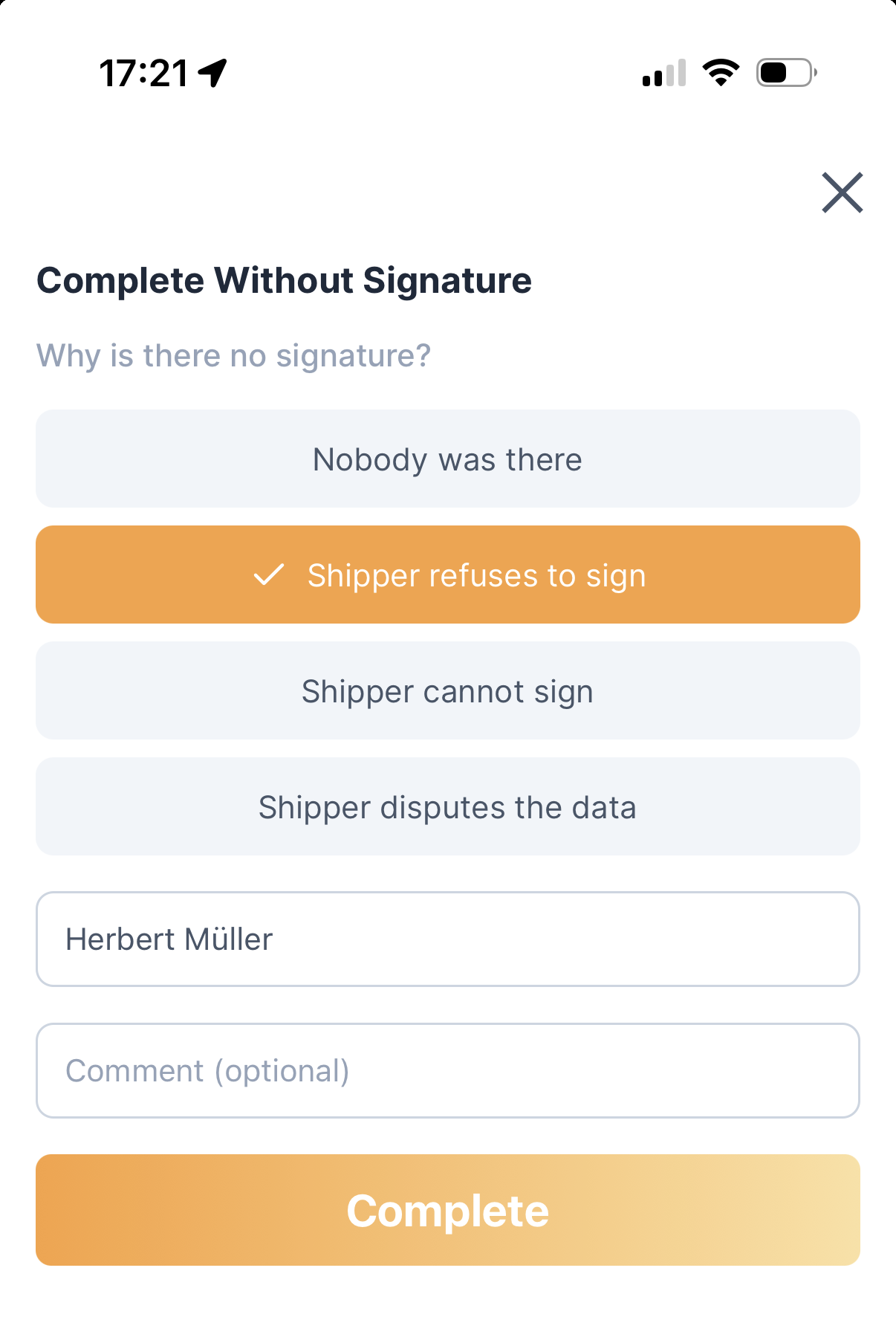
The driver can add the name of whoever was on site and a comment. Because this outcome is final, Orbit asks for confirmation first: the receipt will document that nobody signed, and you cannot change that afterwards.
Photos
When you set Delivery Photos to Optional or Mandatory, the driver gets a photo step and can take up to ten photographs, which become pages of the receipt. The driver takes them with the camera at the time of handover rather than choosing them from the device library, and they belong to the handover as a whole rather than to an individual Load. A photograph of one particular load is taken in the load step instead, as part of completing that load with a note.
Under Mandatory, the driver needs at least one photo to finish. That requirement relaxes to optional when nobody signed, so a driver at a door nobody opened can still finish.
Orbit confirms the finished ceremony with Delivery Documented, or Collection Documented at a pickup.
Completing the stop
A proof requirement is a condition of leaving the stop. A driver cannot depart while a required proof is outstanding, and Orbit enforces this on the server as well as in the app, so the rule holds however the driver tries to depart. Orbit then tells the driver what is missing and offers to record it.
The driver can skip the photo step when your photo policy allows it, and can complete a handover without a signature by recording a reason. Both still produce a receipt.
The delivery receipt
Each completed ceremony produces one receipt for one Shipment. Orbit stores it as a Document and links it to the Shipment, its Tour and its Order like any other file. The receipt carries:
a transaction identifier unique to that handover, and a barcode of the
Shipmentcodethe references, shipper and receiver, and the tour and stop the handover belongs to
a table of
Loadswith description, quantity and outcome, plus booked details such as weight and packaging, and any note recorded against a loadthe overall delivery or collection result
the confirmation sentence as the recipient read it
either the signature image with the signer's name, the time of signing and any comment, or the recorded reason for no signature together with the contact on site
the location and time of capture, with the accuracy of the location reading
any photographs taken during the handover, as additional pages
At a consolidated stop serving several recipients, each recipient signs for their own goods and each Shipment gets its own receipt.
Reviewing a handover in Orbit MissionControl
Captured proofs appear on the Tour Review page, grouped by stop. For each stop you see how many proofs the stop required and how many arrived, either All Proofs Provided or a count of what is missing, alongside any loads that failed during execution.
Each proof tile shows the document itself, the time of capture, the signer's name and comment, and a small map comparing where the driver captured the proof against the stop address. A signature taken well away from the delivery point shows up at a glance.
A receipt sometimes fails to render, most often because of a template problem. Orbit has already stored the signature and the confirmed data by then, so the tile shows a failure state with a Regenerate action that rebuilds the receipt from what the recipient signed. Tour review gates everything downstream, so you see an unrendered receipt before it reaches anyone else.
Who can see what
Operators and the executing carrier can see the delivery receipt. Shippers cannot, because the receipt is a detailed operational record of the handover for claims and disputes.
Ordinary proof files follow a different rule: those reach the shipper once the Tour review is complete, so your customer sees confirmed evidence rather than work in progress. Documents & Proof of Delivery covers document visibility.
Orbit does not display the signature image on its own. It exists only inside the rendered receipt, which is what you view, download and share.
Working without a connection
The whole ceremony runs on the device. Nothing needs a connection while the recipient stands there, and the driver can complete the stop and move on. Orbit queues the finished handover and uploads it when the device next has signal, retrying on its own.
A queued handover counts as captured straight away, so the driver does not wait at the roadside for an upload. If one gets stuck, it appears in the stop's proof list with Try Again. The queue also survives the driver signing out, because nobody can recapture an attestation.
Example
Amara, a driver for Spaceport Shipping Co., arrives at Orion Industries in Lisbon with eight pallets. Two are crushed, so they mark those Load Damaged with a note, scan the rest, and hand the phone to the goods-in supervisor, Mateusz, who reads the Signing Summary in Portuguese: six pallets Delivered, two Not Delivered with the damage noted, overall result Partially Delivered. Mateusz signs, and Amara photographs the damaged pallets before finishing. Back at the depot that afternoon, an operator opens Tour Review in Orbit MissionControl and finds the receipt waiting: Mateusz's signature, the two failed pallets with their reason, the photographs, and a location reading a few metres from the Orion Industries gate. When Orion Industries raises a claim the following week, the operator has one file showing what Mateusz saw when signing.
Technical details
You can set proof requirements, including Documented Signature, through the Orbit API when you create or edit a Shipment or a Tour, and you can attach proof files to a stop programmatically. Receipts become ordinary documents once Orbit creates them, so the document endpoints retrieve them like any other file. See the Orbit API Reference for the relevant endpoints and schemas.
The driver performs the ceremony in Orbit Cockpit, and it has no API equivalent. It captures a person's confirmation at the point of handover, which no system integration can stand in for.
FAQ
Can a driver skip a required proof and record it later?
No. A driver cannot depart a stop while a required proof is outstanding, and Orbit enforces this on the server as well as in the app. When nobody can sign, the route is Complete Without Signature, which records the reason and still produces a receipt.
What if the recipient refuses to sign?
Orbit supports this outcome. The driver records one of four reasons, names whoever was on site if they want, adds a comment, and Orbit prints that in place of the signature. The handover completes and the requirement counts as met.
Does this work for collections as well as deliveries?
Yes. The same ceremony runs at pickup stops, where the shipper signs and Orbit produces a collection receipt. The steps match; only the wording differs.
Can the recipient read the summary in their own language?
The recipient-facing screens and the receipt follow the Recipient Language setting for your organisation. It applies to everyone, so if you deliver across several language regions, choose the language most of your recipients read.
Can I require a documented signature for some customers but not others?
Yes, through proof requirements rather than the ePOD settings. You set requirements per stop, so you can require a Documented Signature on deliveries for one customer and a Photo for another. The receipt template, photo policy and language apply once across the whole organisation.
Can I see the raw signature image?
No. Orbit embeds the signature in the receipt and you view it there. No separate signature file exists to open, so the signature and the data behind it stay together.
The receipt says it failed to generate. Is the signature lost?
No. Orbit stores the signature and the confirmed data the moment the handover completes, and they do not depend on the receipt rendering. Use Regenerate on the failed tile in Tour Review to rebuild the receipt. If it fails again, check the template.
A stop shows no proofs at all. Is something wrong?
Not if the driver has not been there yet. Proofs appear at the moment of the visit, so an empty proof list on an unvisited stop is normal.