
Product Metrics
Product Metrics
Product Metrics surface the key figures behind a price — such as the distance and travel time a quote is based on — directly on product cards and order details in Orbit MissionControl.
Overview
Orbit Products calculate prices from routing and timing data. Before those figures reach the price, a product often adjusts them — rounding values, converting metres to kilometres, applying surcharges, or adapting to pricing zones. The result is a set of tariff figures, such as a tariff distance and tariff travel time, that determine the final price but would otherwise stay hidden from the people reading the quote.
Product Metrics make those figures visible. A Product publishes the values it used to build a price as a consistent list of label-and-value pairs. Operators can then see — and later audit — exactly what a price was based on, rather than inferring it from raw routing data that may not match the figures actually charged.
Key highlights:
Price transparency — Each metric shows a figure that shaped the price, such as tariff distance or travel time, so the basis of a quote is visible at a glance.
Defined by the product — A
Productdecides which metrics to publish.DistanceandDurationare included as standard, and a product can add its own, such as tolls, emissions, weight, or number of stops.Carried through to the order — Metrics are stored on the
Offerand on the resultingOrder, so the figures behind a price remain available long after booking.Localised labels — Every metric carries a translated label and is shown in the reader's language.
Available through the API — Metrics appear on offer and order responses, and can be supplied when an
Orderis created through the Orbit API.
What a metric is
A metric is a simple pair: a label and a value. The label is localised, so each reader sees it in their own language. The value is free-form text, which lets a product format it in whatever way reads best — 420 km, 6h 30m, €42.00, or 3 stops.
Metrics are descriptive. They record the figures a price was built on, but they do not change the price themselves — the price is always determined by the product's line items.
Viewing metrics in Orbit MissionControl
Metrics appear in two places in Orbit MissionControl.
On product cards in the TransportComposer
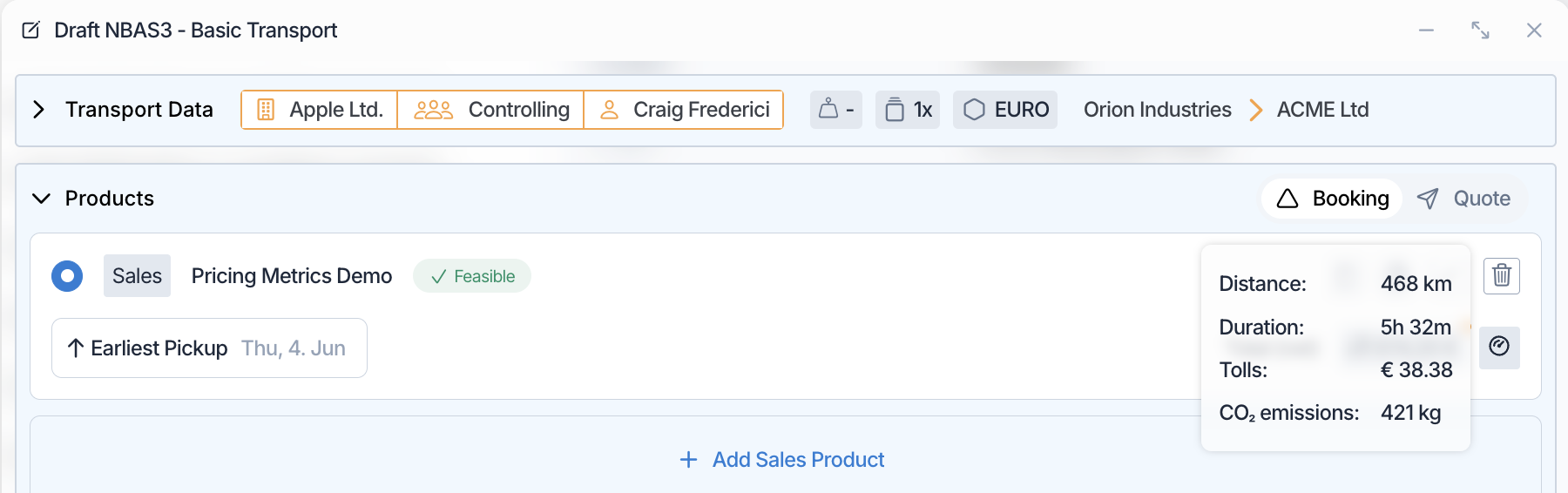
While you build a transport, each product card displays a gauge icon when the product publishes metrics. To read them:
In Orbit MissionControl, open the TransportComposer and enter the transport details.
Review the product cards. A gauge icon appears on any product that publishes metrics.
Hover over the gauge icon. A tooltip lists every metric as a label and value.
On the order details page
Once an Order exists, its metrics stay with it:
In Orbit MissionControl, open the
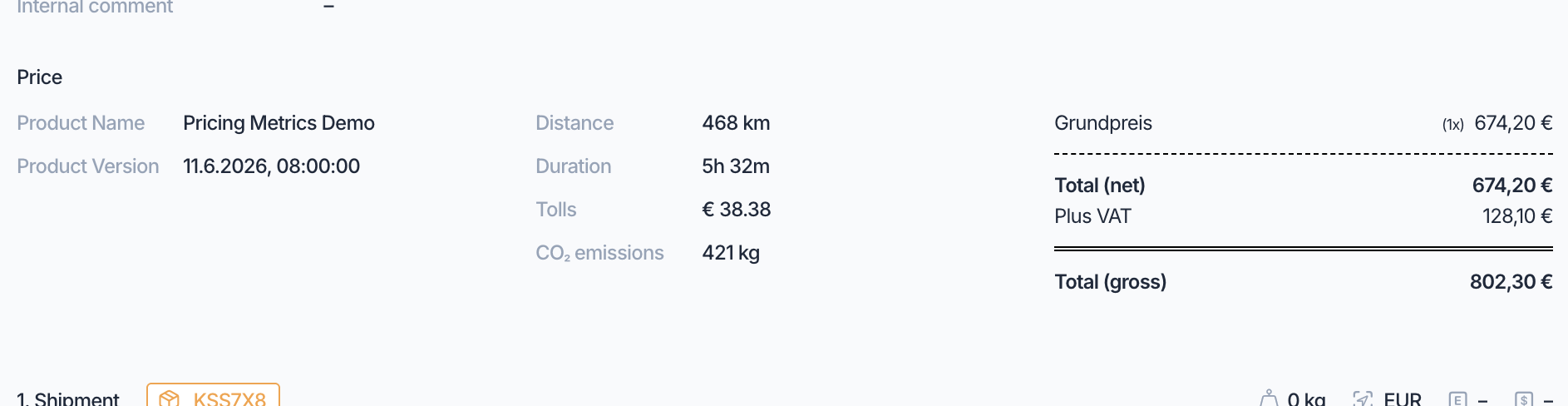
Orderfrom the orders list.Go to the Pricing section.
The product's metrics appear as label-and-value rows alongside the product name and version.
Publishing metrics from a product
Product builders decide which metrics a product publishes. Metrics are produced by a product's ProductBricks — the small functions that make up a Product. Any brick can contribute metrics, whether it handles context, feasibility, pricing, or scheduling, so a figure can come from wherever it is calculated.
A brick publishes metrics by returning them inside its result object, alongside whatever the brick already returns. This is the step that is easy to miss: a metrics list that sits outside the returned object is silently dropped. The shape of that object depends on the brick.
A pricing brick wraps its line items:
return {
  lineItems,
  metrics: [
    { title: { en: "Distance", de: "Distanz" }, value: "420 km" },
    { title: { en: "Duration", de: "Dauer" }, value: "6h 30m" },
  ],
};
A scheduling brick wraps its schedule:
return {
  schedule,
  metrics: [
    { title: { en: "Distance", de: "Distanz" }, value: "420 km" },
  ],
};
Feasibility and context bricks already return an object, so they simply include a metrics field alongside their other fields.
Each entry has a title and a value. The title is a localised object with one value per language (en, de); the value is always a string, with the unit included — "420 km", not 420. There is no separate unit or format field, which is what lets a product format each figure however reads best.
Orbit collects the metrics from every brick in the product and combines them into a single list. If two bricks publish a metric with the same label, the brick that runs later wins — so a later step can refine a figure produced earlier.
The standard pricing bricks publish Distance and Duration without any configuration. A brick that returns only its line items — or only its schedule — keeps working unchanged and simply publishes no extra metrics; switch to the object form shown above only when you want to add metrics. Adding them is entirely optional.
Before publishing a new version, you can preview the metrics a brick produces from its test view in Orbit MissionControl. For more on validating a product's output, see Product Testing.
Example
A logistics operator at Orion Industries in Paris prepares a same-day delivery to ACME Ltd in Lyon. In Orbit MissionControl, they open the TransportComposer and select a courier Product. The product card shows a gauge icon; hovering over it reveals Distance 465 km and Duration 4h 40m — the tariff figures the quote is built on, already adjusted from the raw route to match how this product prices distance and time. Confident the price reflects the real journey, the operator books the transport. When a colleague later reviews the resulting Order, the same Distance and Duration appear in the Pricing section, so the basis of the price is clear without re-running any calculation.
Technical details
Product Metrics are part of the public Orbit API, so an integration can read and supply them as well as view them in Orbit MissionControl:
Each offer in the offers response carries a
metricslist, and everyOrdercarries the metrics it was created with.When you create an
Orderthrough the API, you can include ametricslist to record the figures behind a price your own system calculated.
Each metric is a localised title and a string value. For the full schema, see the Orbit API Reference.
FAQ
Can I choose which metrics a product shows?
Yes. A product publishes whatever metrics its bricks produce. Edit the product's pricing brick to return the metrics you want; Distance and Duration are published as standard.
Do metrics change the price?
No. Metrics are informational only. The price is always determined by the product's line items — metrics simply document the figures behind it.
Can metric labels be translated?
Yes. Every label is localised and shown in the reader's language.
What happens if an order has no metrics?
The Pricing section omits them. A Product that publishes no metrics, or an Order created without any, shows no metric rows and behaves normally.
Is this available in Orbit Hub, Orbit Connect, or Orbit Cockpit?
Metrics are displayed in Orbit MissionControl — on product cards in the TransportComposer and in the Pricing section of an Order. The other Orbit apps do not display them.
Can I access metrics through the API?
Yes. Metrics appear on offer and order responses, and can be supplied when creating an Order. See the Orbit API Reference for details.