
Task Forms
A task form holds the questions a person answers to complete a task: a pallet count, a checkbox, a photo. Orbit checks every answer against the form before the task counts as done.
Overview
Many tasks need more than a confirmation. A task form describes exactly what the person has to enter, in which order and under which conditions. The same form works in every app, so a driver in Orbit Cockpit and an operator in Orbit MissionControl answer the same questions and produce the same result.
A form is optional. A task without a form is completed with a single confirmation. For what a task is and how it moves through its statuses, see Tasks.
Key highlights:
- Nine field types: numbers, text, checkboxes, choices, dates, date and time, files and photos, plus static information text
- Up to 10 steps: long forms split into pages, with an optional summary at the end
- Conditions: a step or field shows only when an earlier answer calls for it
- Photos and files: several files per field, with the camera first in Orbit Cockpit
- Placeholders and presets: form texts and default answers can carry data from the tour, stop or shipment
- Checked on completion: Orbit validates every answer and keeps the task open until the form is correct
Where Forms Are Filled In
The person assigned to the task fills in the form in their own app:
- Orbit MissionControl: in the task window. See Tasks in Orbit MissionControl.
- Orbit Cockpit: in the task sheet that opens at the stop or on the tour. See Tasks in Orbit Cockpit.
- Orbit Connect: in the task modal. See Tasks in Orbit Connect.
A form with several steps shows its progress (Step 2 of 3) and moves on with Continue in Orbit MissionControl and Orbit Connect, or Next in Orbit Cockpit. The last step ends with Submit. After completion, the answers stay readable in the task, marked Completed.
Field Types
Each field in a form has a kind. Every input field shares these settings: id (unique within the form, the answers are stored under it), label, an optional description shown as help text, required, and an optional condition, visibleIf.
| Kind | What the person sees | Answer is stored as | Extra settings | Validators |
|---|---|---|---|---|
number | A number field | Number | placeholder, preset | range, integer, http-json |
text | A single-line text field | Text | placeholder, preset | pattern, length, http-json |
textarea | A multi-line text field | Text | placeholder, preset | pattern, length, http-json |
checkbox | A single checkbox | true or false | preset | None |
select | A choice of options | The id of the chosen option | options (at least one), preset | None |
date | A date picker | Date as YYYY-MM-DD | preset | None |
datetime | A date and time picker | Time in epoch seconds | preset | None |
file | Upload area or camera | A list of document IDs | maxFiles, acceptedContentTypes, preferCameraCapture | None |
display-text | Static text, no input | Nothing | text instead of label | None |
Labels, descriptions and option names are written per language, for example { "en": "Pallets delivered", "de": "Gelieferte Paletten" }. At least one language must be filled in.
A checkbox always answers Yes or No. An unticked checkbox counts as No, so required on a checkbox never forces a tick. When a person must confirm something explicitly, use a required select with a single option such as Confirmed.
Validators
Validators add rules on top of required. Each field takes up to 10, and each can carry its own error message in localizedMessage.
| Validator | Rule |
|---|---|
pattern | The text must match a regular expression in full |
length | The text has at least min and at most max characters |
range | The number lies between min and max, both included |
integer | The number is a whole number |
http-json | Your own system checks the value on completion (see Technical Details) |
Steps
A form consists of one or more steps, at most 10. Each step has an id, an optional title and its fields. A form holds up to 50 fields across all steps. A form with a single step shows no progress indicator and goes straight to Submit.
The Summary Step
Set summaryStep to true to add a final Summary page. It lists every answer for a last check before the person submits. Edit next to a step jumps back to it. If Orbit rejects an answer on submission, the summary marks the field and links to its step.
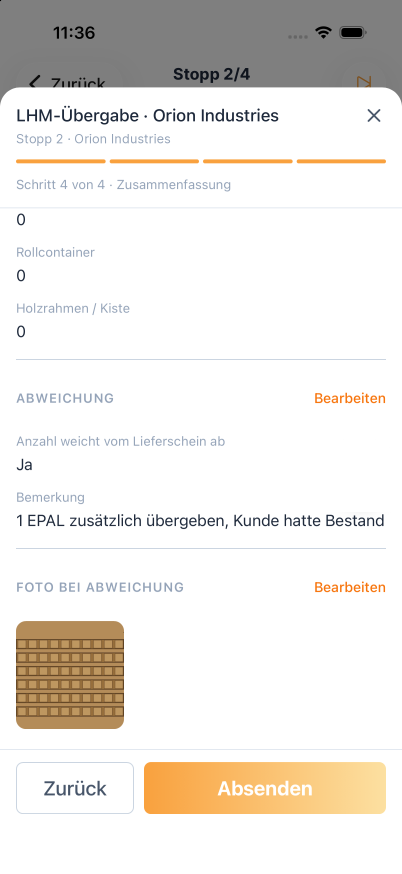
The summary step in Orbit Cockpit: every answer at a glance before submitting.
Conditions
A condition shows a step or a field only when an earlier answer calls for it. A damage description appears only when the driver reports damage. A photo step appears only when pallets are missing.
Conditions are written in visibleIf. They compare an earlier field with a fixed value and combine several comparisons with and or or:
"visibleIf": {
  "combinator": "and",
  "rules": [{ "field": "condition", "operator": "=", "value": "damaged" }]
}
These comparisons are available:
| Earlier field is a | Operators | Compare with |
|---|---|---|
checkbox | =, != | true or false |
select | =, != | The id of an option |
number | =, !=, <, <=, >, >= | A number |
text | =, contains | A text |
A few rules keep conditions predictable:
- A condition can only refer to fields that come earlier in the form. A step condition refers to fields in earlier steps.
- Fields of the kinds
textarea,date,datetimeandfilecannot be used in a condition. - A hidden field is never required. Its answer is not sent, and Orbit rejects a value for it.
- A condition holds at most 20 comparisons.
Photos and Files
A file field collects photos, PDFs or other documents. One field can hold several files: up to 10 by default, and up to 50 with maxFiles. Across the whole form, the total of all maxFiles values is capped at 200. A required file field needs at least one file.
acceptedContentTypeslists the file types to offer, for example["image/jpeg", "application/pdf"]. The apps show only these types in the file picker, and Orbit Cockpit refuses other types with File Type Not Allowed.preferCameraCapturetells the mobile app that a photo is expected. Orbit Cockpit leads with Take photo for every field that accepts JPEG images and offers Choose from gallery or Choose file as the second option. The camera saves photos as JPEG, so a field limited to PNG shows no camera button.
Each file uploads as soon as it is added. Submit waits until every upload is finished. The files are stored as documents on the task.
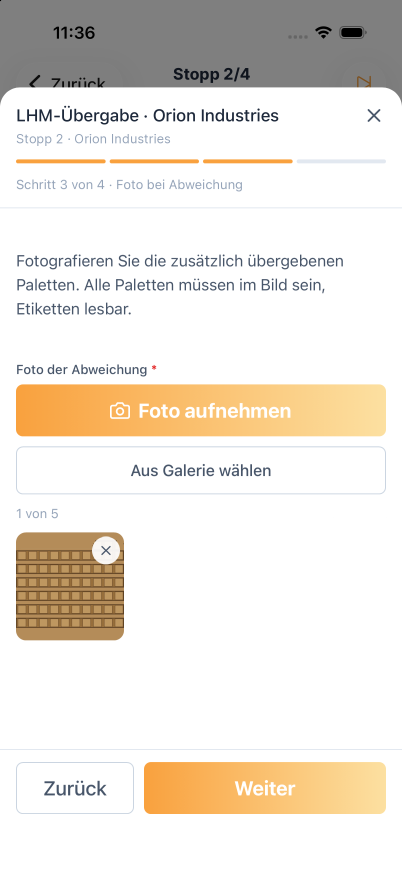
A photo field in Orbit Cockpit: the driver takes up to the allowed number of photos and can remove or retake them before submitting.
Placeholders and Presets
Form texts can carry data of the object the task belongs to, such as its tour, stop or shipment. Write a placeholder in double curly braces, for example {{ tour.displayName }} or {{ stop.address.companyName }}. In a task template, the trigger decides which data is available. Orbit replaces the placeholders once, when it creates the task.
Placeholders work in step titles, field labels, descriptions, placeholder texts, option names, validator messages and display text.
A preset fills in a default answer that the person can change. It can be fixed (0, true, an option id) or come from a placeholder. If a preset does not fit the field, for example text in a number field, Orbit leaves the field empty instead of stopping the task. file fields take no preset.
Editing a Form
Forms are part of a task template and are edited in Orbit MissionControl. For the full template set-up, see Task Templates.
- In Orbit MissionControl, open the task template.
- Select the Form tab.
- Edit the form as JSON in the editor on the left.
When you create a template, What does the form start with? offers a starting point: No form, Checklist or Photo proof with comment.
The editor suggests keys as you type, lists placeholders under Available data and marks errors directly in the text. A status line shows the number of steps and elements, or the number of errors. The preview on the right shows the form as the assignee sees it, filled with sample data. Fill it in to see the answers under Output. You can save only once every error is fixed.
A task keeps the form it was created with. Changes to a template apply to tasks created afterwards.
Example Form
This form checks a pallet exchange at each stop. The driver enters the number of pallets delivered and whether all were exchanged. When some or all are missing, a second step asks for the empty pallets received and a photo of the pallet note. A summary closes the form.
{
  "summaryStep": true,
  "steps": [
    {
      "id": "count",
      "title": { "en": "Pallet count" },
      "elements": [
        {
          "id": "intro",
          "kind": "display-text",
          "text": {
            "en": "Count the Euro pallets you exchange with {{ stop.address.companyName }}."
          }
        },
        {
          "id": "palletsDelivered",
          "kind": "number",
          "label": { "en": "Pallets delivered" },
          "required": true,
          "validation": [
            { "type": "integer" },
            { "type": "range", "min": 0, "max": 66 }
          ]
        },
        {
          "id": "exchange",
          "kind": "select",
          "label": { "en": "Pallets exchanged?" },
          "required": true,
          "preset": "full",
          "options": [
            { "id": "full", "localizedName": { "en": "All exchanged" } },
            { "id": "partial", "localizedName": { "en": "Some missing" } },
            { "id": "none", "localizedName": { "en": "None exchanged" } }
          ]
        }
      ]
    },
    {
      "id": "shortfall",
      "title": { "en": "Missing pallets" },
      "visibleIf": {
        "combinator": "or",
        "rules": [
          { "field": "exchange", "operator": "=", "value": "partial" },
          { "field": "exchange", "operator": "=", "value": "none" }
        ]
      },
      "elements": [
        {
          "id": "palletsReturned",
          "kind": "number",
          "label": { "en": "Empty pallets received" },
          "required": true,
          "preset": 0,
          "validation": [{ "type": "integer" }]
        },
        {
          "id": "photos",
          "kind": "file",
          "label": { "en": "Photo of the pallet note" },
          "required": true,
          "maxFiles": 3,
          "acceptedContentTypes": ["image/jpeg", "image/png"],
          "preferCameraCapture": true
        }
      ]
    }
  ]
}
The placeholder {{ stop.address.companyName }} needs a template with the trigger Each stop of a tour.
Example
Spaceport Shipping Co. delivers building materials across Rotterdam and exchanges Euro pallets at every drop. Its operator Julia adds the pallet exchange form above to a task template for each stop. At a construction site, the driver Mohammad enters 12 pallets delivered and selects Some missing. The Missing pallets step appears, he enters 8 empty pallets received and photographs the signed pallet note. On the summary he checks the numbers and taps Submit. In Orbit MissionControl, Julia opens the completed task and sees the count, the shortfall and the photo.
Technical Details
Tasks with a form can also be created and completed through the Orbit API. The form travels as JSON in the same shape as in the template editor, and the answers are sent as an object keyed by field id. A file answer is always a list of document IDs, also for a single file. Upload the files first and send their IDs with the completion. Placeholders in a form sent through the API resolve against the object the task belongs to.
The acceptedContentTypes list guides the apps. The API does not enforce it.
An http-json validator sends the value to an HTTPS address of your own system when the task is completed, after every other check has passed. Your system accepts or rejects the value. If it rejects the value or does not answer within 5 seconds, the task stays open. A form can use up to 8 of these validators.
Completed answers are part of the task-completed webhook, and a Document Engine template can print them, photos included. For endpoints and schemas, see the Orbit API Reference.
FAQ
Can drivers attach several photos to one field? Yes. A file field accepts up to 10 files by default. Set maxFiles to allow up to 50.
What happens to the answers? Orbit stores them with the completed task. They stay readable in the task in Orbit MissionControl and Orbit Cockpit, they are part of the task-completed webhook, and a document template linked to the task template can print them.
What happens if an answer is wrong? Orbit checks the form before it completes the task. If an answer breaks a rule, the task stays open and the app marks the field with the reason.
Can I change the form of an existing task? No. A task keeps the form it was created with. Change the task template, and new tasks use the new form.
Can a condition depend on a later field? No. A condition can only refer to fields that come earlier in the form, so the person always answers the deciding question first.