
Task Templates
A task template is a rule that creates tasks automatically when something happens in Orbit, for example when a tour is planned or a shipment is booked. You set it up once, and Orbit creates the right task, for the right person, every time.
Overview
Much recurring work follows a pattern. Every tour needs a vehicle check, and one customer wants its pallets exchanged on every delivery. A task template describes that pattern: when Orbit creates a task, for which tours, stops or shipments, what it says, who does it and by when. Each task then carries the details of the tour, stop or shipment it belongs to. For what a task is and how it is worked, see Tasks.
Key highlights:
- Five triggers: a template reacts when a tour is created, assigned or completed, when a shipment is created, or for each stop of a tour
- Conditions: optional rules narrow a template down to the tours, stops or shipments it is meant for
- Placeholders: task names, descriptions and form texts can include real data, such as the tour number or the stop's company
- Due dates: a fixed time after creation, or a time relative to the end of the stop's time window
- Documents on completion: a template can turn every completed task into a PDF, filed with the task and its tour or shipment
- Live preview: the editor shows the task as the assignee will see it while you build the template
Triggers
The trigger sets the moment Orbit creates a task. It also decides which object the task belongs to.
| Trigger | When Orbit creates a task | The task belongs to |
|---|---|---|
| Tour created | Once per tour, as soon as it is created or imported | The Tour |
| Tour assigned | On every assignment to a carrier, including a reassignment | The Tour |
| Each stop of a tour | Once per stop, when the tour is planned | The Stop |
| Tour completed | When an operator completes the tour, not on arrival at the last stop | The Tour |
| Shipment created | Once per shipment, as soon as it is created | The Shipment |
Stop Tasks
With Each stop of a tour, Orbit does not wait for the driver to arrive. It creates one task per matching stop as soon as the tour exists, so the driver sees the work before getting there. Orbit checks the tour again when it is assigned and whenever its stops change. An added stop gets its task, and a stop that leaves the tour takes its open task with it. Cancelling or deleting the tour removes its open stop tasks, and resetting a cancelled tour brings them back. A stop task stays with its stop when the stop moves to another position, and each template creates at most one task per stop.
Conditions
Without conditions, a template creates a task for every tour, stop or shipment its trigger covers. Conditions, under Only when in the editor, narrow this down.
A condition compares a field with a value. A template on Each stop of a tour with the condition City equals Lyon creates tasks only at stops in Lyon. You can combine up to 20 conditions and require all of them or any one of them.
The fields depend on the trigger and are grouped under Stop, Tour and Shipment: the stop's company, city and position, the tour number, status, driver and vehicle class, the shipment's pickup and delivery addresses, and more. Every other field, such as the carrier or custom properties, is listed by its technical name under More fields.
Orbit checks the conditions at the moment it would create the task. For stop tasks, this is when the tour is planned and again when it is assigned, so a condition on the driver or the vehicle can match once they are known. If a condition cannot be checked, Orbit creates no task.
What the Task Says
Each template sets the Task name and an optional Description that the assignee sees, and can carry a form to fill in on completion. Without a form, the assignee confirms the task. Forms are described in Task Forms.
Placeholders
Task names, descriptions and form texts can contain placeholders in double curly braces. Orbit replaces them with real data when it creates the task. A task name such as Check pallets for {{ tour.displayName }} becomes Check pallets for T-10482.
Tour triggers provide tour, Each stop of a tour provides tour and stop, and Shipment created provides shipment. Some useful placeholders:
| Placeholder | Shows |
|---|---|
{{ tour.displayName }} | The tour number |
{{ tour.vehicleNumberPlate }} | The vehicle's licence plate |
{{ stop.number }} | The stop's number on the tour, starting at 1 |
{{ stop.address.companyName }} | The company at the stop |
{{ shipment.displayName }} | The shipment number |
{{ shipment.dropoff.address.city }} | The delivery city of the shipment |
Two formatting helpers turn timestamps into readable text:
formatDateshows a date as2026-03-24, or as24.03.2026withformatDate: "de". Example:{{ tour.latestStart | formatDate }}formatTimeshows a time as hours and minutes, such as14:30. Example:{{ stop.timeTo | formatTime }}
Both helpers show Central European time. The Form tab lists every field you can use under Available data.
Orbit fills in placeholders once, when it creates the task, and does not update them if the tour or stop changes later. A field without a value shows as empty. A placeholder for an object the trigger does not provide, such as shipment on a tour trigger, cannot be saved.
Assignee
Every task from a template goes to the same fixed assignee, set under Assign to: a whole organisation, a team or a single user on the Operator, Carrier or Shipper side. A new template starts with your whole operator organisation. Drivers see a task in Orbit Cockpit when it is assigned to their carrier, their team or themselves.
Due Date
The Due setting decides when each task falls due. You enter an amount and a unit (minutes, hours or days), and choose what it counts from under Relative to:
- No due date: the task has no deadline
- creation: a fixed time after Orbit creates the task, from 1 minute up to 365 days
- end of the stop window: a time before or after the end of the stop's planned time window, up to 365 days either way. This option is available only with the Each stop of a tour trigger. A stop without a time window gives its task no due date
Behaviour While the Task Is Open
Three switches control how a task behaves:
- Blocks departure from the stop (stop tasks) or Blocks the tour (tour tasks): the driver cannot leave the stop, or move the tour on, until the task is completed or skipped. See Tasks in Orbit Cockpit and Tasks in Orbit Connect
- Can be skipped: the assignee may skip the task instead of completing it
- Only people can complete it: Orbit accepts completion only from a signed-in person, not through the API or an automation
Documents on Completion
Under Generate document, a template can name a document template from the Document Engine. When a task is completed, Orbit creates a PDF from it and files it with the task and its tour or shipment. Completion does not wait for the document.
The document template may use only the completed task and the trigger's own object: the tour for tour and stop triggers, the shipment for Shipment created. Orbit refuses to save a pairing that asks for more, such as a carrier. Proof of delivery templates are not offered.
Active, Inactive and Deleted
A template is either Active, Inactive or Deleted:
- Active templates create tasks.
- Inactive templates create nothing, and tasks they created earlier stay as they are. Activating a template does not go back over earlier events. Existing tours get their stop tasks the next time they are assigned or their stops change.
- Deleted templates create nothing and are hidden. Turn on Show deleted and select Restore to bring one back. It returns as inactive, so you can review it first.
Duplicate creates an inactive copy with "(Copy)" added to its name, without the key. If the form checks entries against an external endpoint, enter its credentials again in the copy.
The optional Key, such as pallet-handover, is a fixed identifier for integrations. It cannot be changed after creation, and a deleted template keeps it, so it never passes to another template.
Setting Up a Template in Orbit MissionControl
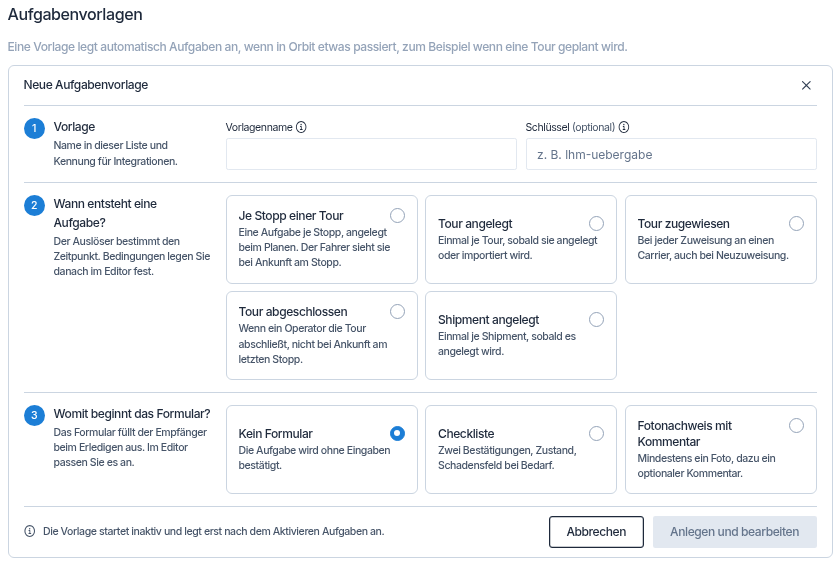
- Open Settings and select Task Templates.
- Select Add Task Template.
- Under Template, enter a Template name and, if you work with integrations, a Key.
- Under When is a task created?, select a trigger.
- Under What does the form start with?, select No form, Checklist or Photo proof with comment.
- Select Create and edit. The template is saved as inactive and the editor opens.
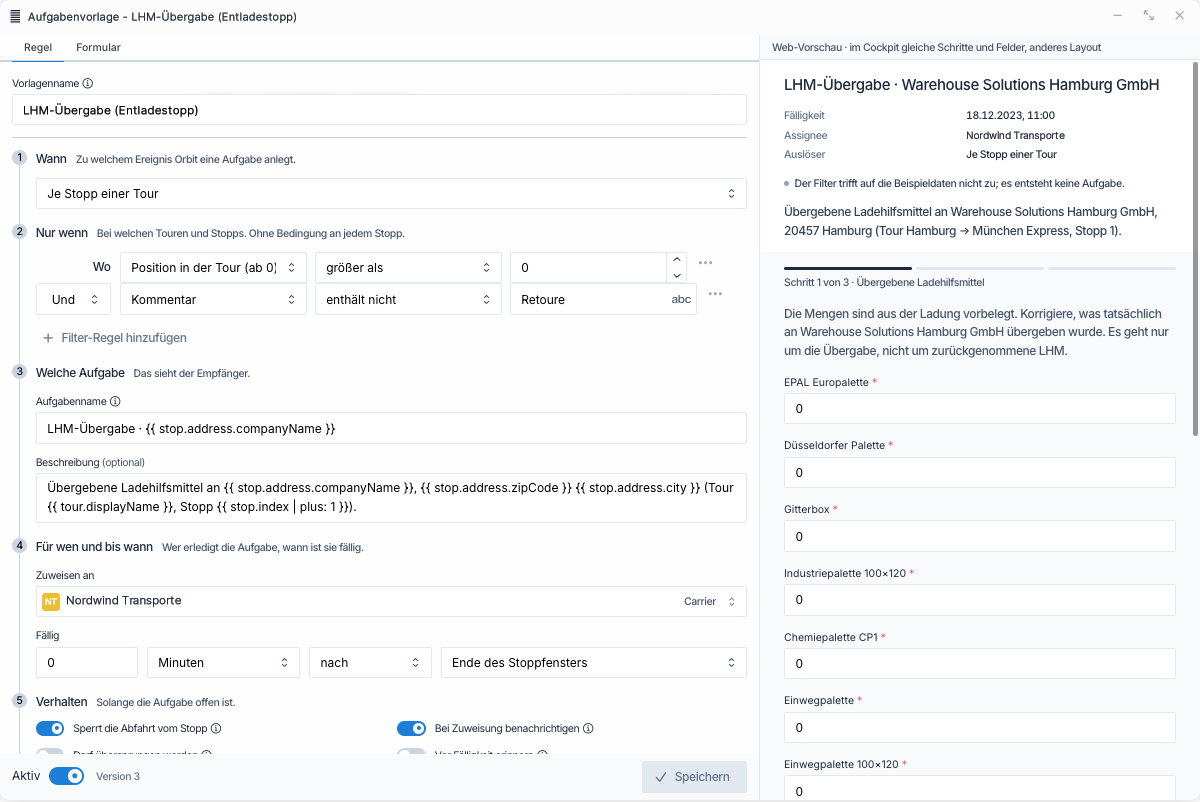
The editor has two tabs. Rule holds the template in six steps: When, Only when, Which task, For whom and by when, Behavior and After completion. Form holds the form, described in Task Forms.
- Set the conditions, task name, assignee, due date and behaviour on the Rule tab.
- Check the preview on the right. It shows the task with sample data, its due date and assignee, and whether the conditions match. You can fill in the form there to test it.
- Turn the switch at the bottom to Active.
- Select Save.
If you change the trigger, Orbit removes the conditions and the stop window due date that no longer apply and tells you so. If someone else saved the template while you were editing, Orbit asks you to reload it before you can save.
Example
Spaceport Shipping Co. delivers groceries across Lyon, and ACME Ltd wants its empty pallets exchanged on every delivery. Julia, an operator, creates a template on Each stop of a tour with the condition Company equals ACME Ltd, the task name Pallet exchange at {{ stop.address.companyName }}, stop {{ stop.number }} and the Checklist form. She assigns it to the carrier Orion Industries, sets it due 30 minutes after the end of the stop window, turns on Blocks departure from the stop and links a pallet receipt document template. When Max plans a tour with two ACME stops, both get their task straight away. Mohammad, the driver, completes the checklist at each stop before driving on, and each pallet receipt is filed with its task and the tour.
Technical Details
The Orbit API manages task templates under the same rules:
GET /v5/tasktemplateslists templates, including deleted ones only withstatus=deleted.POST /v5/tasktemplatescreates a template, active unless you send"status": "inactive".GET,PATCHandDELETE /v5/tasktemplates/{templateId}read, change and delete a template. SendexpectedVersionwith a change to refuse it if the template changed in the meantime.POST /v5/tasktemplates/{templateId}/restorerestores a deleted template as inactive.
Every task from a template carries its templateId and, if set, its templateKey. See the Orbit API Reference for the full schema.
FAQ
Does changing a template update the tasks it already created? No. Orbit fills in each task when it creates it. Your changes apply to tasks created from then on.
Why did my template not create a task? Check that the template is Active and saved, and that its conditions match. The preview tells you whether the conditions match its sample data. Events that happened before the template was active do not create tasks.
Can a template assign each task to the carrier that runs the tour? No. The assignee is the same for every task. To give drivers of several carriers the same task, create one template per carrier and add a condition on the carrier under More fields.
What happens to a stop task when the stop is removed from the tour? Orbit removes the task if it is still open. Tasks that were already completed or skipped stay on record.
Why can I not save the template with a document selected? The document template uses an object the task cannot provide. Adjust it in the Document Engine so that it uses only the task and the tour or shipment.