
Tasks in Orbit Connect
Orbit Connect lists the tasks your operator assigns to your carrier, lets you fill in and submit them where you work, and holds a tour at the right moment until its blocking tasks are done.
Overview
A Task is a piece of work your operator needs from you, such as a checklist before a tour starts or photos of a sealed trailer. In Orbit Connect you find every open task in one list, see a tour's tasks on its detail page, and complete them in a single window. When a task is blocking, Orbit Connect makes sure it is done before the tour moves on. For the concept behind tasks, see Tasks.
Key highlights:
- One list: the Tasks page gathers every open task assigned to your carrier, your team or you
- On the tour: a tour's open tasks sit above its stops
- Blocking tasks hold the tour: Next Status opens the outstanding tasks first, and the tour continues on its own once they are done
- Skip where permitted: a skippable task can be skipped after one confirmation
Which Tasks You See
You see a task when your operator assigns it to your carrier as a whole (Entire carrier), to your team (Your team) or to you (Assigned to you). The task window shows which. Tasks for another team of your carrier, another carrier or the operator's own staff stay out of view.
Orbit Connect shows open tasks only. A task that is completed, skipped or cancelled leaves your list straight away, wherever that happened. You cannot create tasks here: they come from your operator's Task Templates or through the Orbit API.
The Tasks List
Select Tasks in the navigation. The badge next to it shows how many open tasks you have.
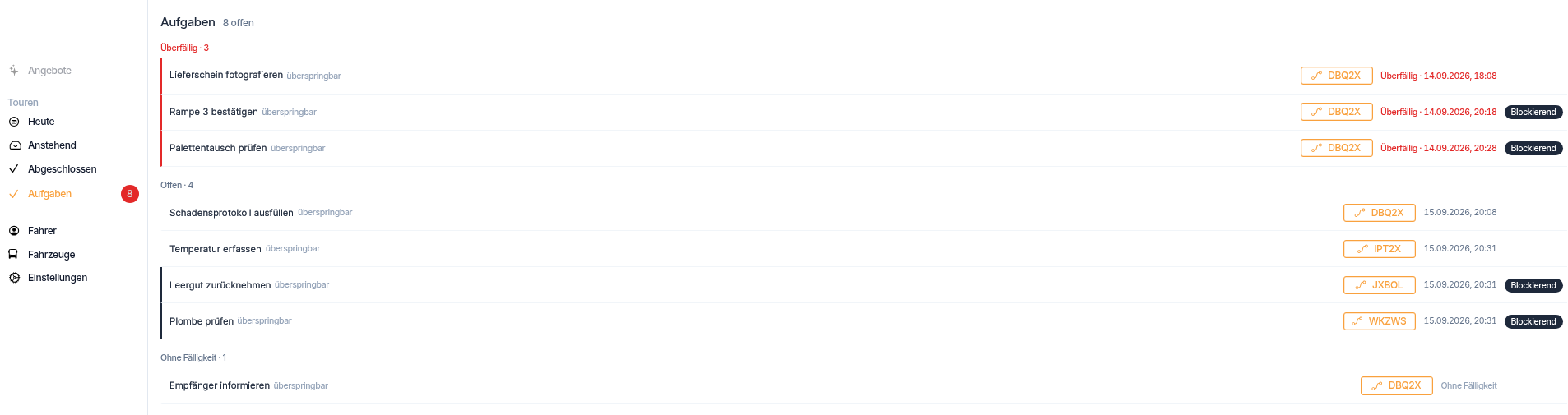
The Tasks list, with overdue tasks at the top and a blocking badge on the right.
The heading shows the total, for example 12 open. Tasks fall into the groups Overdue, Open and No due date, each with its own count, and within a group the task due soonest comes first. Each row shows:
- The task name, followed by skippable if you may skip it
- The object the task belongs to. For a
Tour, a tour tag appears: select it to open the tour - The due date and time. A task due today appears in darker, bold text. An overdue task reads Overdue · followed by the date, in red
- A Blocking badge if the task holds up its tour
A coloured line on the left edge marks overdue rows in red and blocking rows in dark grey. The list updates on its own as tasks arrive and close.
Tasks on a Tour
Open a tour to see its Tasks card above the list of stops, with the number of blocking tasks beside the heading, for example 2 blocking. Whoever moves the tour on sees what could hold it up. If the tour has no open tasks, the card does not appear.
The card lists tasks that belong to the tour itself. A task on a single stop of the tour appears in the Tasks list instead.
Complete a Task
In Orbit Connect:
- Select a task in the Tasks list or in a tour's Tasks card. The task window opens.
- Read the header: task name, tour, due date, scope and the operator's description.
- Fill in the fields of the form.
- Select Continue to move to the next step of the form. Select Back to return to an earlier step.
- Check your entries on the Summary step. Select Edit to change a step.
- Select Submit.
Orbit Connect confirms with Task completed, and the task leaves your list. Your operator sees your answers and files in Orbit MissionControl.
Some tasks have no form. The window then says This task has no form. Complete it once the work is done. Select Complete when you have done the work.
Submit waits until every file upload has finished. If a field fails a check, the message appears next to it. For every field type, see Task Forms.
Skip a Task
In Orbit Connect:
- Open the task.
- Select Skip at the top right of the task window. Only skippable tasks show it.
- Read the confirmation Skip this task? Your operator sees that the task was skipped, and you cannot complete it afterwards.
- Select Skip to confirm, or Cancel to return to the task.
Orbit Connect confirms with Task skipped.
Blocking Tasks When You Move a Tour On
Orbit Connect checks for open blocking tasks each time you select Next Status on a tour's detail page, and each time you submit a failed stop through Stop Failed. Which tasks count depends on the step:
- Tasks on the tour count for every step forward, from starting the tour to finishing it.
- Tasks on a stop count only when the tour leaves that stop, which is the step after arriving there. Marking the stop as failed also leaves it, so it counts too.
If no blocking task is open, the tour moves on as usual. If some are, the task window opens in place of the status change.
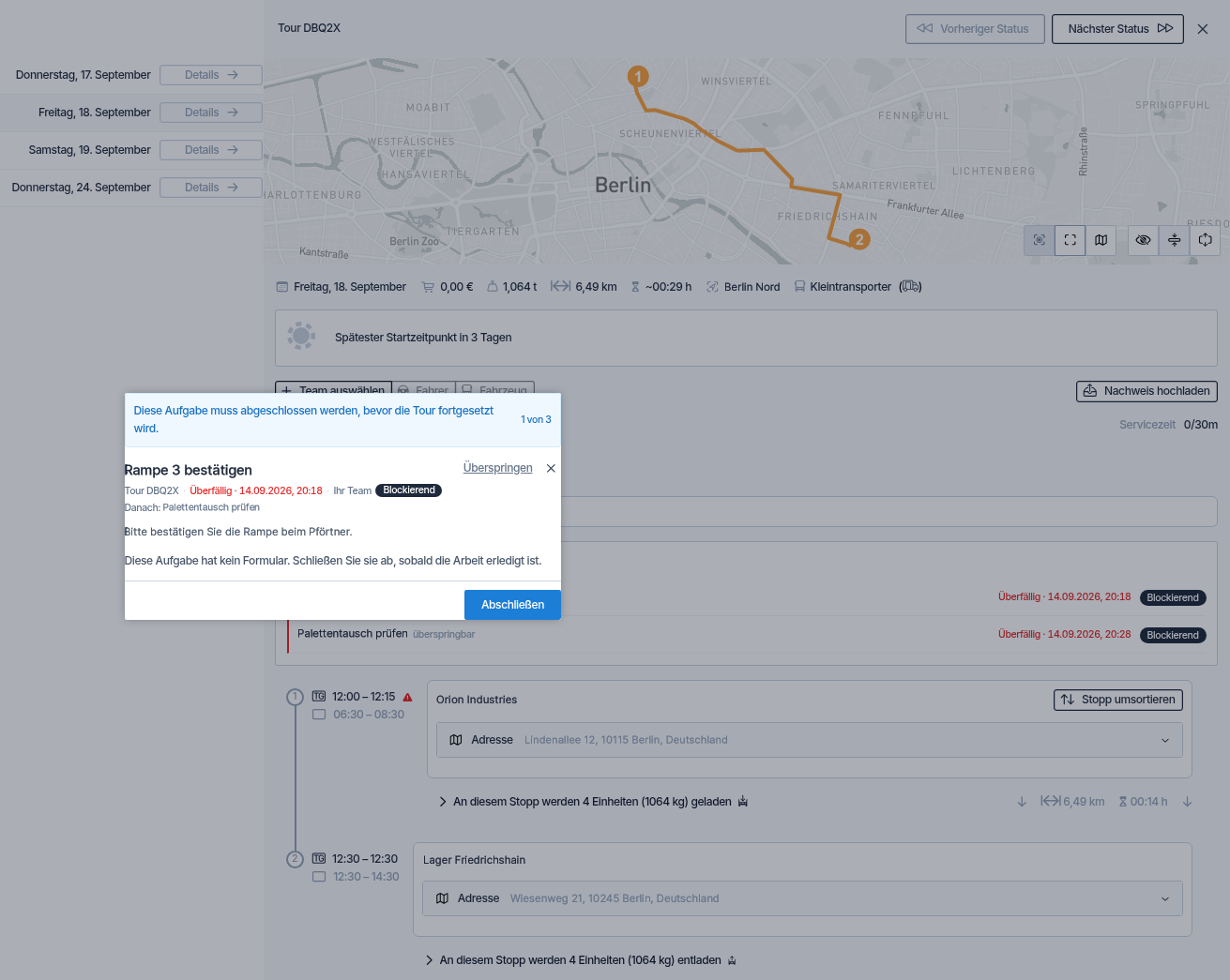
The first of three blocking tasks, with the notice bar and the counter at the top.
A blue bar at the top reads This task must be completed before the tour continues. With more than one task, a counter shows your place, for example 1 of 3, and a line below the header names the task that follows: Next: and its name. The most urgent task comes first.
Complete or skip each task as usual, and the next one loads in the same window. After the last one, the tour continues without a second click on Next Status. If that step normally asks you to confirm a time, the confirmation opens next. Orbit Connect then reports Task completed, tour continued. or Task skipped, tour continued.
You can close the window at any time. The tour stays where it was, tasks you already finished stay finished, and a failed-stop reason you entered is kept. Select Next Status again when you are ready.
Previous Status never checks tasks. Only blocking tasks you can see count, so a task assigned to another team of your carrier does not hold your tour. If the check itself fails, you see Task Check Failed and the tour does not move.
Example
Chen is a dispatcher at Orion Industries in Barcelona, a carrier that drives chilled goods for Spaceport Shipping Co. Spaceport Shipping Co. requires three checks before each of these tours starts. Chen opens today's tour to Milan and selects Next Status to start it. The task window opens instead, showing 1 of 3 and Next: Upload trailer seal photo. Chen confirms the driver's licence check, uploads the seal photo and enters the cooling unit's temperature. After the third task Orbit Connect reports Task completed, tour continued., and the tour is running.
FAQ
Can I see tasks I have already completed? No. Orbit Connect shows open tasks only. Your operator keeps the full history of each task in Orbit MissionControl.
A task shows in the Tasks list but not on the tour. Why? It belongs to a stop of the tour. If it is blocking, it comes up when the tour leaves that stop.
Can I skip a blocking task? Only if your operator made it skippable. A skipped blocking task releases the tour in the same way as a completed one.
A driver completed the task in Orbit Cockpit. Do I still need to do it? No. The task leaves your list and no longer holds the tour. See Tasks in Orbit Cockpit.
What if someone else completes the task while I have it open? Orbit Connect tells you the task is already closed and keeps your entries on screen. There is nothing more to do.